




Technology · 5 min
How to Download Google Maps for Offline Use
Nutshell Pick an area, tap download, and the map stays on your phone when the signal drops. What still works offline, what does not, and the settings that stop the files from going stale.
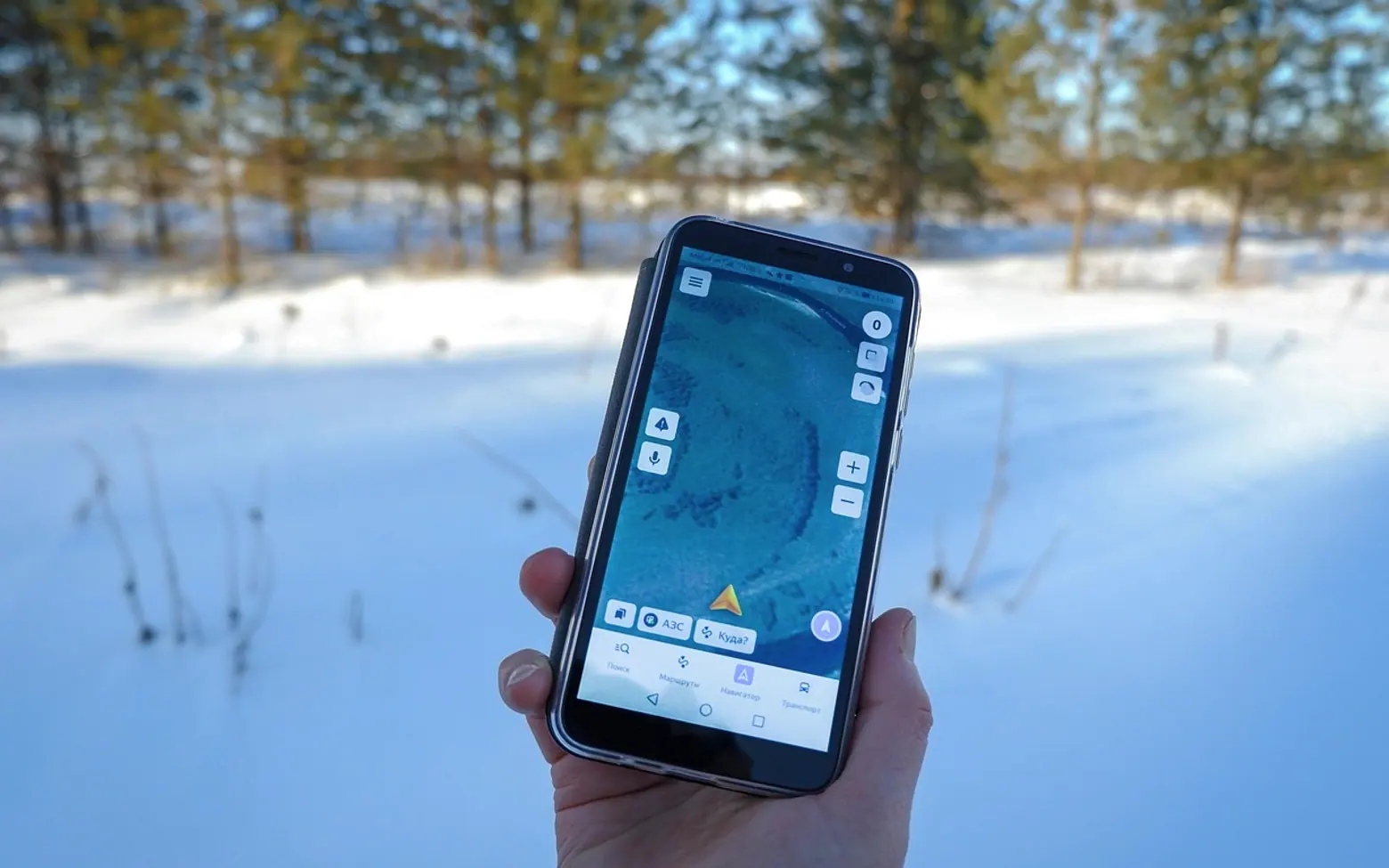
To download Google Maps for offline use, open the Maps app, tap your profile picture, choose Offline maps, then Select your own map. Drag the blue box over the area you need and tap Download. The map is saved on the phone, and the app switches to it on its own whenever you lose your connection.
That is the short version. The longer one matters too, because an offline map behaves differently from the live one: some directions vanish, traffic stops updating and the saved area quietly expires if you ignore it for too long.
Step by step on Android and iPhone
The layout is almost identical on both systems, so one set of steps covers most phones.
- Connect to Wi-Fi if you can. A city-sized area can be a large download, and mobile data is the last thing to waste on it.
- Open Google Maps and make sure you are signed in. Offline maps are tied to your account on that device.
- Tap your profile picture or initial in the top corner, then tap Offline maps.
- Tap Select your own map. A blue rectangle appears over the map.
- Pinch and drag until the rectangle covers everywhere you expect to go, including the airport or station you arrive at. The screen shows roughly how much space the download will need.
- Tap Download and wait for the progress bar to finish before you head out.
A shortcut works too: search for a city, open its place card, and look for a download option in the menu or among the buttons under the name. It pre-selects a sensible area around that place.
Naming and checking your maps
Each saved area appears in the Offline maps list with a default name. Rename it to something you will recognise later, such as the trip or the region, especially if you save several overlapping pieces. The list also shows when each map expires and how much space it takes.
What works offline, and what does not
| Feature | Without a connection |
|---|---|
| Seeing streets, place names and your blue location dot | Works inside the saved area |
| Searching for addresses and places in the area | Works, with basic details |
| Driving directions and turn-by-turn guidance | Works, as long as start and end sit inside the saved area |
| Walking, cycling and public transport directions | Not available offline |
| Live traffic, delays and closures | Not updated until you reconnect |
| Reviews, photos and current opening hours | Limited or missing |
The missing walking and transit directions surprise people most. A workaround is to look up the walking route while you still have Wi-Fi, for example at the hotel, and leave that screen open. The blue dot keeps tracking your position from GPS even without data, so you can still follow the line on the map by eye.
Keep offline maps from expiring
Saved maps are not permanent. Roads, businesses and opening hours change, so the app wants to refresh them from time to time, and a map that goes too long without an update stops working.
- Open Offline maps, tap the settings gear and switch on Auto-update offline maps. The phone then refreshes them in the background.
- In the same menu, set downloads to happen over Wi-Fi only unless your data plan is generous.
- Before a trip, open the list and tap Update on any map you plan to rely on. A fresh copy is the safest bet.
- Delete maps for places you have left. They take space and you can always download them again.
Storage and size limits
Offline maps can take up a surprising chunk of storage, and there is a cap on how big a single area can be. For a long road trip, save several overlapping areas along the route rather than trying to squeeze a whole region into one box. If the download refuses to start, the box is probably too large or the phone is short on space; the guide to freeing up storage on an iPhone covers the quickest ways to clear room, and most of the ideas carry over to Android.
Many Android phones with a memory card slot can save offline maps to the card instead. Look for Storage preferences in the Offline maps settings and pick the SD card.
Places where offline maps fall short
In a few countries, Google Maps offers limited detail or no offline download at all, usually because of local rules on map data. South Korea is the best-known example: directions there are patchy, and visitors tend to lean on local map apps instead. If that is your destination, the overview of staying connected in Seoul with a SIM, eSIM or pocket Wi-Fi explains which kinds of apps to set up before you land.
Offline maps also cannot help on a laptop: the download feature lives in the phone and tablet apps, not in the browser version.
A quick pre-trip checklist
- Download the destination area and any towns you will pass through.
- Star your hotel, the station and a couple of key addresses while online, so they show up as saved places.
- Check the expiry date on each map.
- Silence the apps that would otherwise drain your battery with pings; the walkthrough on turning off notifications without missing what matters helps here.
- Put the phone in airplane mode once and open Maps to confirm the saved area actually loads.
Common questions
Does an offline map use mobile data?
No. Once downloaded, browsing and driving navigation inside the area run on the saved file and GPS. Data is only used if you are online anyway, for example to fetch traffic or photos.
Can I use offline maps in airplane mode?
Yes. GPS keeps working in airplane mode on most phones, so the blue dot still moves. Some phones need location services switched on separately.
Why did my offline map disappear?
It most likely expired because it was not updated, or it was removed to free space. Download it again over Wi-Fi and turn on auto-updates so it does not happen twice.
Got a topic idea?
Suggestions help us plan.